Configure an Export Definition - Google Ads
The use of a Google Ads Connector allows you to select Members using a Segment, then export those Members to Google Ads to use as the target recipients of display advertising.
This article assumes that you have already created the Export Definition, either by creating it from scratch, or by copying an existing Export Definition.
To configure an Export Definition:
-
Select Admin from the top navigation bar, then select Integrations > Exports from the side navigation menu. The Exports screen is displayed.
-
On the Exports screen, search for the desired Export Definition (see
-
Click the name of the desired Export Definition. The Export Definition Details screen is displayed.
The Export Definition Details screen is split into multiple steps, identified by a series of numbered items across the top of the screen. You can complete these steps (described below) in any order you like. The Next button at the bottom of the screen navigates to the next step in the sequence, and the Back button navigates to the previous step.
Step 1: Filter
The Filter step for Google Ads Connectors allow you to select a Segment that defines the audience of Members to export.
-
At the top of the Export Definition Details screen, click Filter.
-
From the Segment drop-down menu, select the desired Segment.
-
Optionally, to refresh the Segment before exporting, toggle Refresh Segment to On.
-
Click Save. Or click Next to move to the next step in the Export Definition screen.
Step 2: Destination
The Destination step is used to define the destination of the export file. This step requires that you have a Connection Profile defined. For more information on creating a Connection Profile, please see Connectors.
-
At the top of the Export Definition Details screen, click Destination.
-
From the Connection Profile drop-down menu, select a Connection Profile.
-
From the Account Name drop-down menu, select the desired Google Ad account.
-
The Audience Name drop-down menu is populated with the existing Audiences from the selected Google Ad account. This drop-down menu is populated in real-time, so if you create Audiences in the Google Ad platform, they will appear in this menu. For the Audience, you can either:
-
Select an existing Audience that you want to populate with the records selected by your Segment.
-
Create a new Audience that you want to populate. Click the Add icon. The Create New Audience pop-up window is displayed. Enter the Audience Name and Description, then click Create. The platform creates the Audience in the selected Google Ad account.
-
-
Next to Match Based On, select a Match Type: Email, Phone, or Mailing Address. This option defines how Google will attempt to match the records in the Segment to existing Google accounts.
Note: You must provide the appropriate Attributes on the Map & Transform step that correspond to the match option you select here. See below for details on this step.
-
Click Save. Or click Next to move to the next step in the Export Definition screen.
Step 3: Map & Transform
The Map & Transform step is used to define the data map for the export file. When exporting data to send to the Google Ads platform, the export file must conform to strict field naming conventions. By default, this screen will automatically list all of the fields supported by Google Ads. The Destination column lists the standard Google Ads field names. All fields are marked as Required.
Note: Do not change the standard Google Ads field names listed beneath Destination .
The screen automatically lists all the available fields supported by Google Ads, but you should send only the field(s) associated with the Match Type you selected in the Destination step, and delete the fields that you don't need.
-
Based on the Match Type you selected in the Destination step, delete each unneeded field by clicking the Delete icon next to it. For each Match Type listed below, you must send the correct field(s), and delete everything else:
-
Email:
-
email
-
-
Phone:
-
mobile_phone
-
-
Mailing Address:
-
mailing_country
-
mailing_postal_code
-
last_name
-
first_name
-
-
-
Click Save. Or click Next to move to the next step in the Export Definition screen.
Step 4: Schedule
Export Definitions can be executed on-demand (see
In addition, you can create a schedule that executes the export once at a specified date / time, or on a recurring basis. These schedule options are described below.
Execute Only Once
To schedule an Export Definition to execute once at a specified date / time:
-
At the top of the Export Definition Details screen, click Schedule.
-
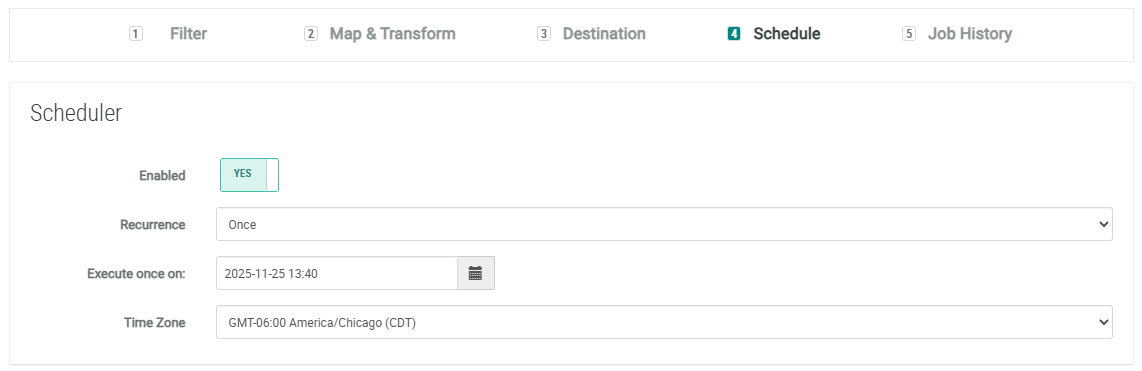
Toggle Enabled to Yes.
-
From the Recurrence drop-down menu, select Once.
-
Click into the Execute Once On field. A calendar pop-up window is displayed. Select the desired date when you want the export to execute.
-
Within the calendar pop-up window, click the clock icon. Define the time when you want the export to execute.
-
From the Time Zone menu, select the time zone to use when determining the time to execute.
-
Click Save.
Executing on a Recurring Schedule
To schedule an Export Definition to execute on a recurring frequency:
-
At the top of the Export Definition Details screen, click Schedule.
-
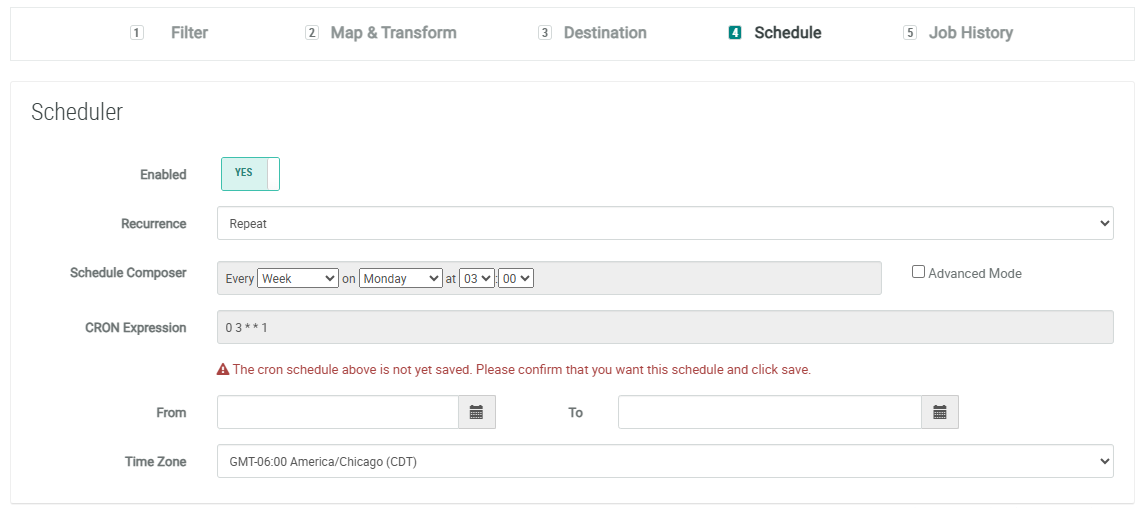
Toggle Enabled to Yes.
-
From the Recurrence drop-down menu, select Repeat.
-
Next to Schedule Composer, select an interval:
-
15 Minutes
-
30 Minutes
-
Hour: Select the minute past the hour.
-
Day: Select the time of day.
-
Week: Select the day of the week, and the time of day.
-
Month: Select the day of the month, and the time of day.
-
Year: Select the day, the month, and the time of day.
-
-
As you configure the interval above, the CRON Expression field is automatically populated with the associated CRON expression. Optionally, to manually edit this expression, check Advanced Mode.
-
Optionally, using the From and To fields, define the export schedule begin and end date. If you leave these date fields blank, the schedule will run indefinitely.
-
From the Time Zone menu, select the time zone to use when determining the time to execute.
-
Click Save.
Email Notifications
You can configure the Export Definition to trigger success and / or failure notifications to one or more email recipients.
-
Optionally, if you want to send error notifications, toggle Error to Yes, then enter the email addresses for the notification recipients.
-
Optionally, if you want to send success notifications, toggle Success to Yes, then enter the email addresses for the notification recipients.
-
Click Save.